Team and roles
Invite your team to handle conversations alongside the agent. You manage it in Members (Settings menu).
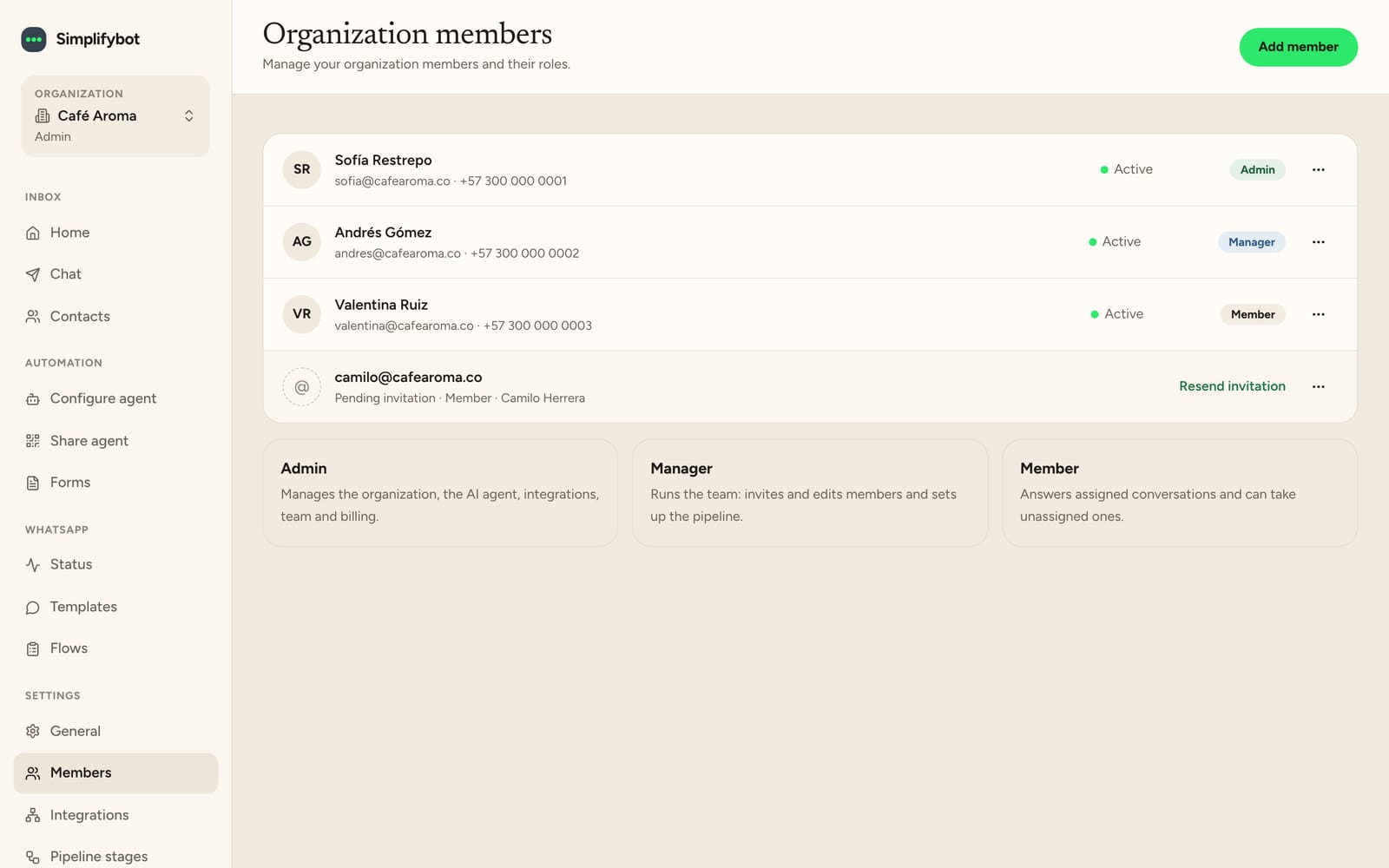
Roles
| Role | What they can do |
|---|---|
| Admin | Manages the organization, the agent, integrations, the team and billing |
| Manager | Leads the team: invites and edits members and sets up the funnel |
| Member | Replies to assigned conversations and can take unassigned ones |
In addition, the Owner is the person who created the organization. They're the only one who can delete it and they always receive important notices.
Invite someone
- In Members, click Add member.
- Enter their name, email and phone, and choose their Role.
- They get an email with a link. They must sign in with the Google account for that email.
The invitation expires in 7 days. If they didn't use it, click Resend invitation.
A Manager can invite Managers and Members. Only an Admin can change roles.
Deactivate someone
Use Deactivate member to remove their access. You can restore it with Reactivate.
How many people per plan
| Plan | Members |
|---|---|
| Basic | 1 |
| Business | 5 |
| Enterprise | 100 |
Members requires a paid plan. See Plans and billing.
Multiple organizations
If you run more than one business, you can have several organizations with the same account. In the organization selector (at the top of the side menu), use Manage organizations to Create a new one or Enter another. Each organization has its own agent, channels, team and plan.