Chat and contacts
Your agent works on its own, but you and your team can see everything and step into any conversation.
Chat
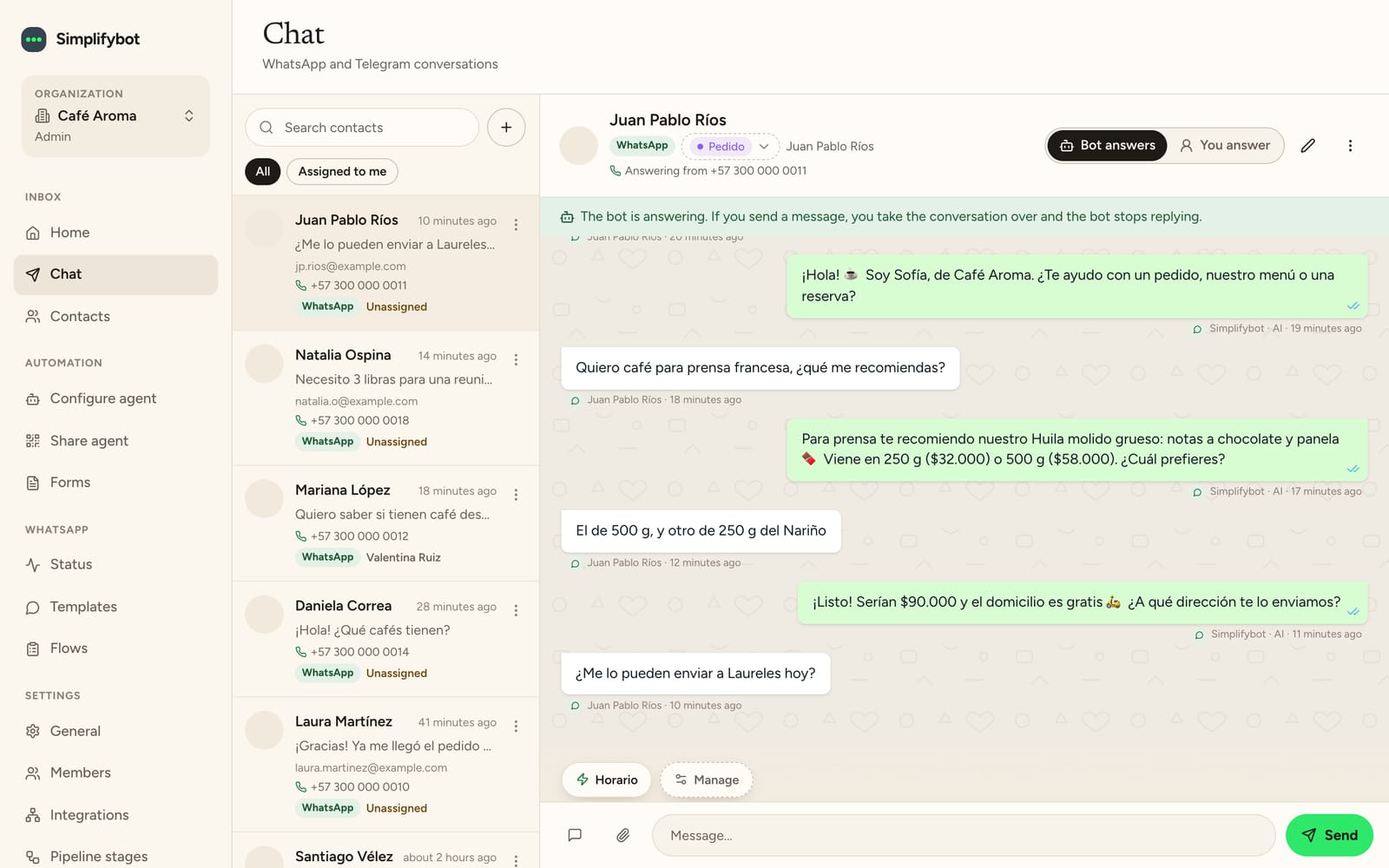
In Chat (Inbox menu) you see all your WhatsApp and Telegram conversations. Filter by All, Assigned to me or Unassigned.
Who replies
Each conversation shows who is replying:
- Bot answers: the agent is handling it.
- You answer: the agent is paused in that conversation.
To take over a conversation, just type. When you send your message, the conversation passes to you and the agent stops replying.
Handing the conversation back to the agent
- From the dashboard: click Hand back to the bot.
- From the WhatsApp Business app (if you connected your number with the app): end your message with #bot. Keep in mind the customer sees that word too.
If you reply from the WhatsApp Business app without #bot, you take over the conversation just as if you'd replied from the dashboard.
When the agent hands you the conversation
The agent hands the conversation to your team when:
- It uses Request help because it can't solve something
- It has already replied to 50 messages from the customer in the same conversation. It tells the customer someone from your team will write to them shortly.
- The customer sends a voice note longer than 2 minutes or an image larger than 5 MB
- The customer has been waiting longer than the time you set in Alert if the agent does not answer
In those cases the contact is marked as urgent and the assigned person (or the whole team if no one is assigned) and the organization owner are notified by email, in the dashboard's bell and with a push notification.
Other actions
- Assigned To: assign the conversation to someone on your team.
- Close conversation: the customer's next message starts a new conversation.
- Quick replies: saved texts, for use within WhatsApp's 24 hours.
- Quick templates: send an approved template, even after the 24 hours.
- Send a form and Book an appointment.
- Tags and Notes about the customer.
Contacts
Contacts holds the list of all your customers. The agent creates and updates them on its own.
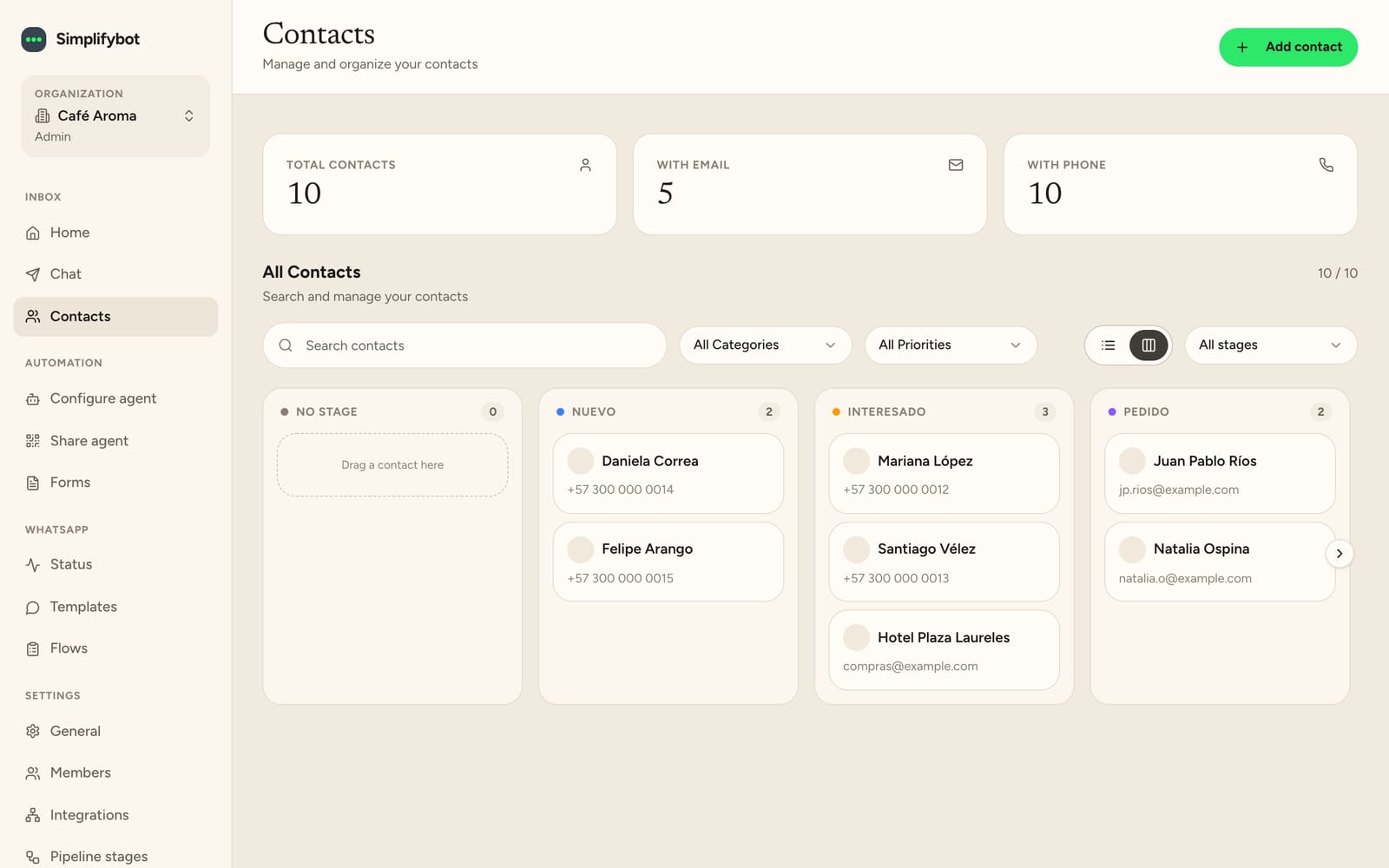
- List view or Board view: on the board, each column is a stage of the funnel. Drag a contact to move it to another stage.
- Filters: by stage, category (Prospect, Potential, Customer, Partner, Other) and priority (Low, Medium, High, Urgent).
- Add contact, Edit contact and Delete contact.
- In each contact's details you see their information, their current stage and their Funnel history.
Notifications
The dashboard's bell alerts you when the agent asks for help, when a contact is assigned to you and when new messages arrive.
To also get them on your phone or computer, turn on alerts in Notifications (your user menu) with Turn on notifications. On iPhone, first add Simplifybot to your home screen from Safari (Share → Add to Home Screen).
Share your agent
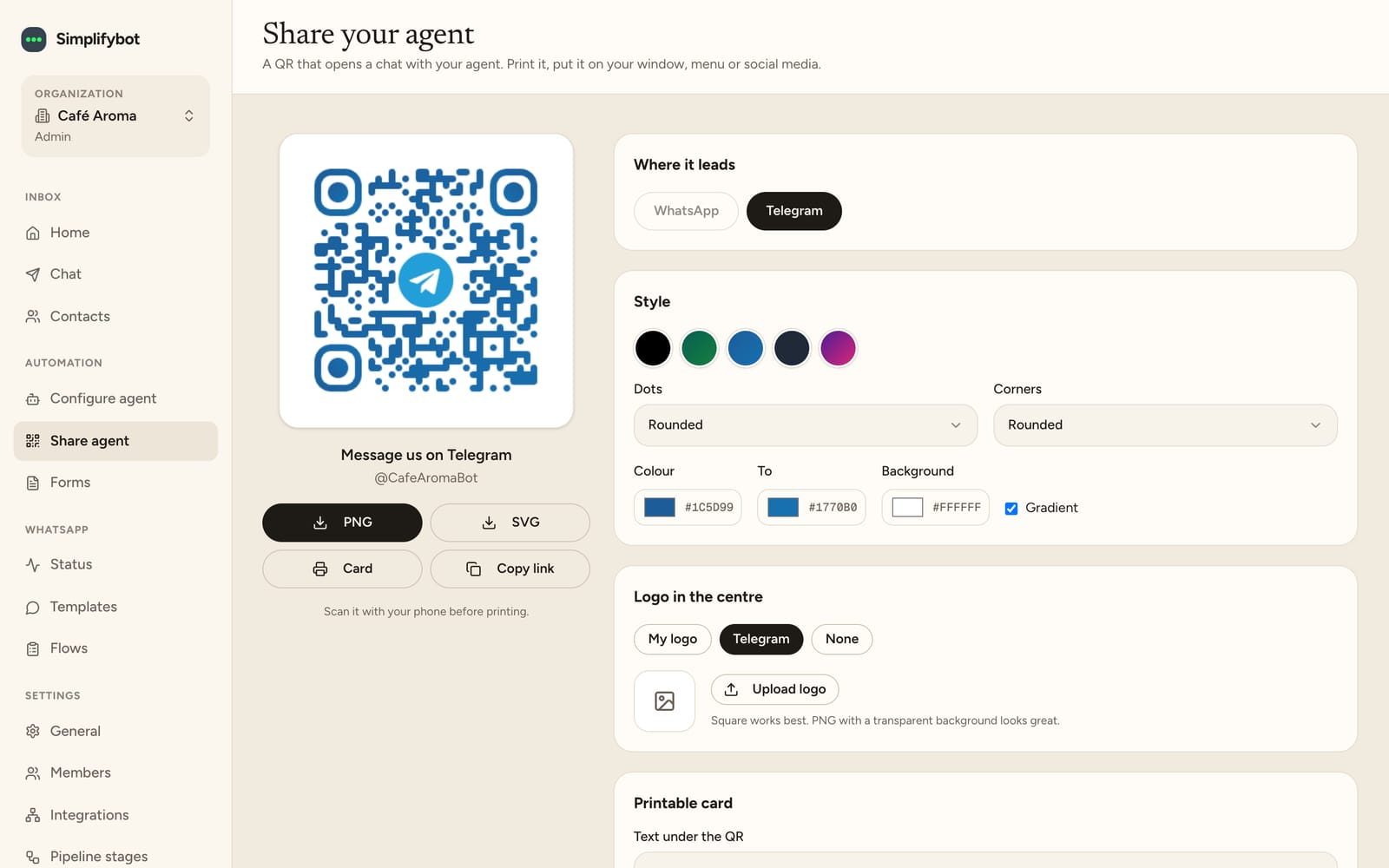
In Share agent (Automation menu) you create a QR code that opens a chat with your agent on WhatsApp or Telegram. You can choose the first message the customer sends, the colors and the logo, and download it as a Printable card or copy the link. You need WhatsApp or Telegram connected.