Funnel
The funnel is the stages a customer goes through: for example, New → Interested → Quote → Purchased. In each stage you tell the agent what to do, and it moves the customer when appropriate.
You set it up in Pipeline stages (Settings menu). The Admin and the Manager can edit it.
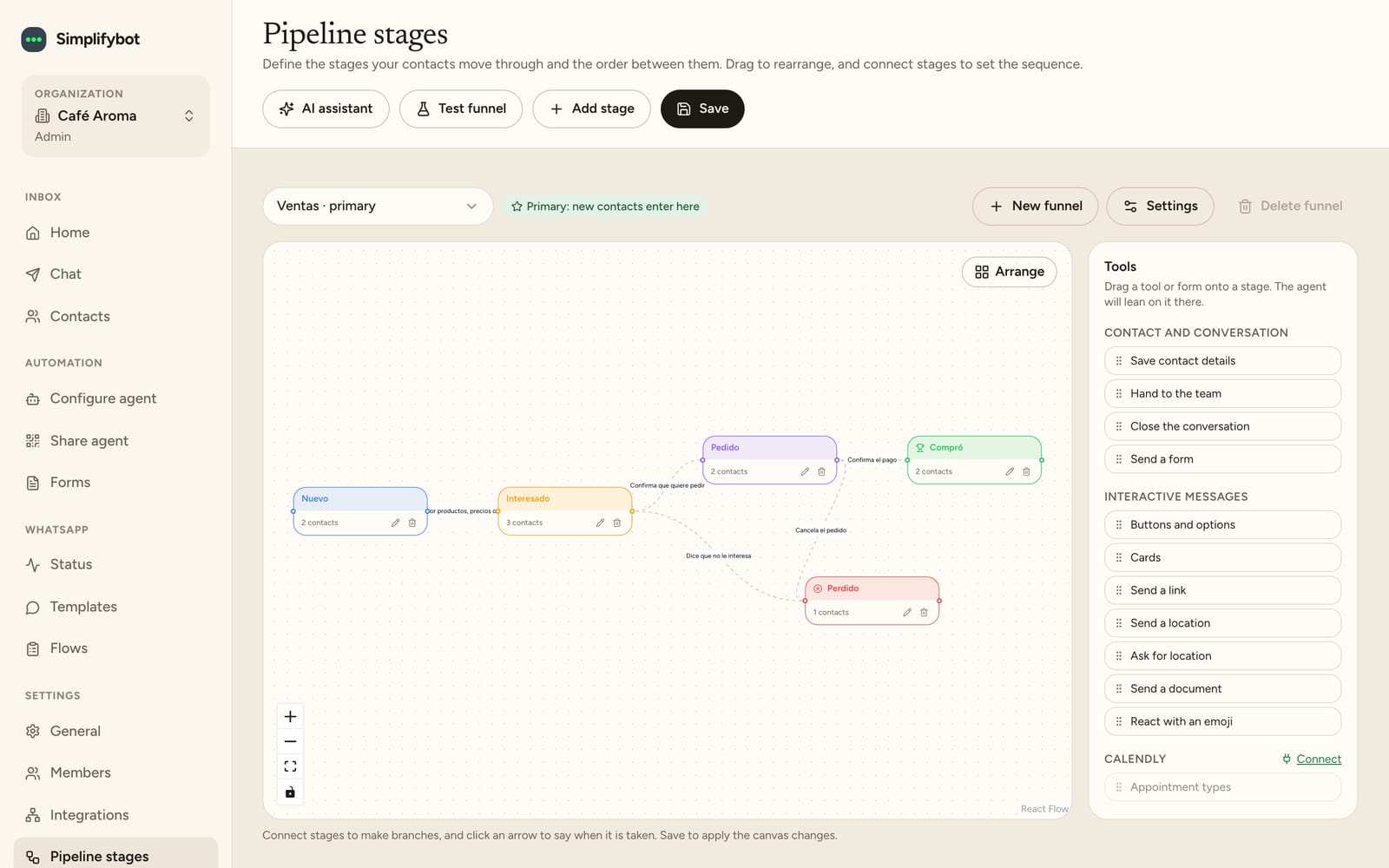
Create your funnel
If you don't have stages yet, you can:
- Use a template: Sales, Support, Onboarding or FAQ
- Create with AI: describe your process and the AI builds the stages
- Build my own stages: from scratch
If you completed the guided setup, you may already have one.
Stages
With Add stage or Edit stage you define:
- Who is in this stage?: what kind of customer arrives here
- What does the agent do in this stage?: its goal at that point
- Type: In progress, Won or Lost (there can only be one Won stage and one Lost stage)
- Color
- Follow up if they stop answering: an approved WhatsApp template that's sent once if the customer doesn't reply after a certain number of hours
You can't delete a stage that still has contacts.
Connect stages
On the canvas you drag the stages and connect them. On each connection you specify When does the contact go? to the next one. That way you can have different paths depending on what happens in the conversation. Arrange tidies up the canvas automatically.
From the Tools panel you can drag tools or forms onto a stage so the agent uses them there first.
Funnel review warns you if something isn't connected correctly.
Multiple funnels
You can have more than one funnel with New funnel. One is the primary: new contacts enter there. With Settings you choose the Entry stage and the Returning stage (when a customer writes again).
If you delete a funnel, its stages are deleted, but each contact's history is kept.
AI assistant
- Ask for a change: write what you want to change and the AI rewrites the funnel.
- Look for improvements: the AI reads your tests and real conversations (without phone numbers or emails) and suggests changes. Nothing changes until you apply it. Up to 10 per day.
Test the funnel
In Test funnel you write as if you were a customer and see what the agent does.
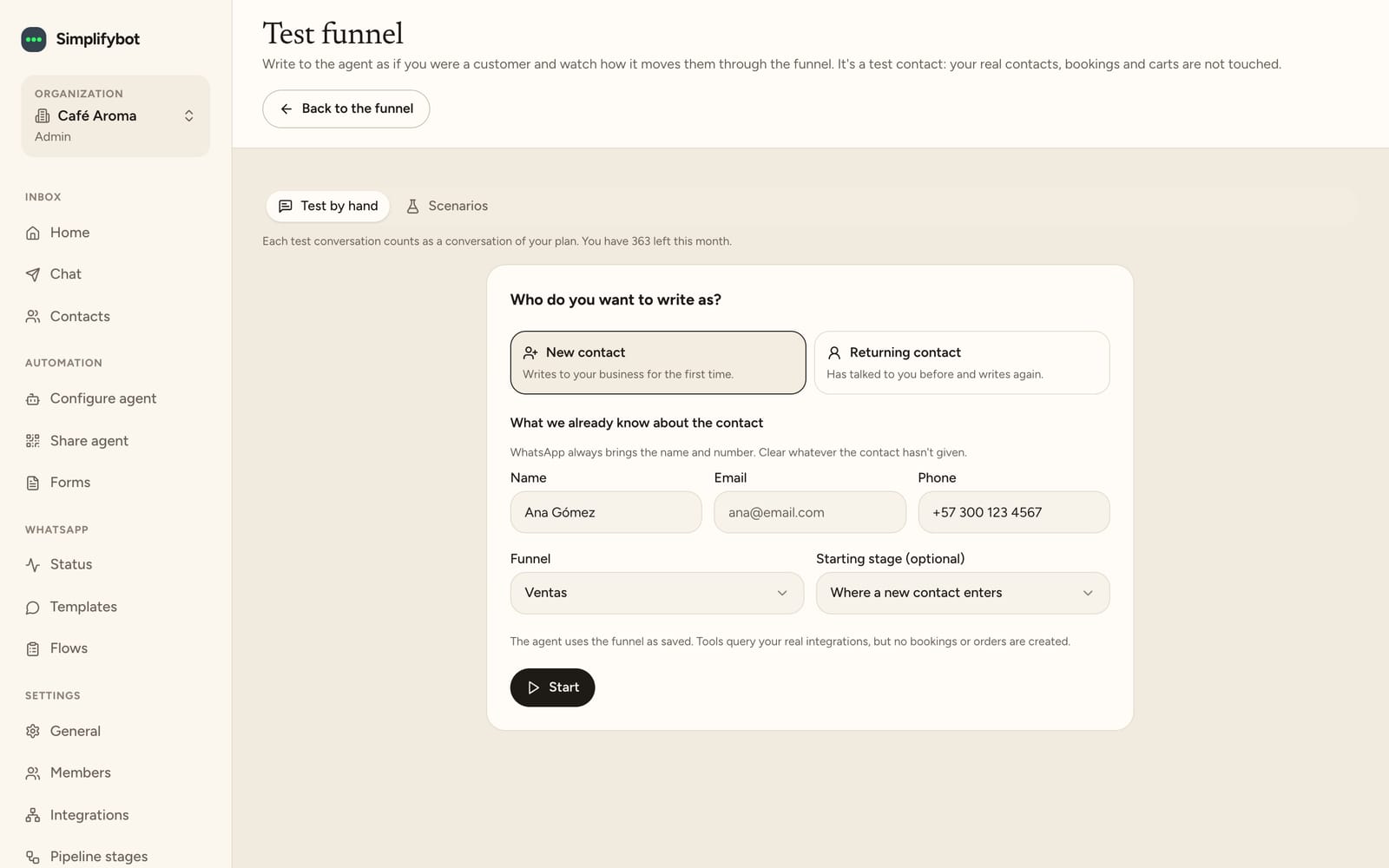
Test manually
- Choose Who do you want to write as?: New contact or Returning contact.
- Optional: write What we already know about the contact, choose the funnel and the starting stage.
- Click Start and type.
In What happened you see each stage change, the data the agent saved, the forms sent and the tools used. Tools query your real integrations, but no bookings or orders are created.
Scenarios
An AI plays the customer for you. You describe the scenario and what you expect to happen (up to 10 expectations), and the AI runs the conversation (up to 15 turns). You can use Suggest scenarios with AI and Run all.
How much a test costs
- With a plan: each test conversation counts as one conversation on your plan.
- During the free trial: each reply uses up one reply from your trial.
See Plans and billing.
Next: Connect channels.