Step 1: Create and Update Your Organization
Your organization profile contains essential information about your business that helps Simplifybot understand your context and serve your customers better.
Prerequisites
Before you begin, make sure you have completed all the prerequisites:
- ✅ Facebook Business Account approved and verified
- ✅ WhatsApp Business Account (WABA) set up
- ✅ OpenAI API key generated
📖 Don't have these yet? Follow our Prerequisites Guide to set them up.
Accessing Organization Settings
- Log in to your Simplifybot dashboard
- Navigate to Organization in the sidebar menu
- You'll see the organization form with several fields to fill out
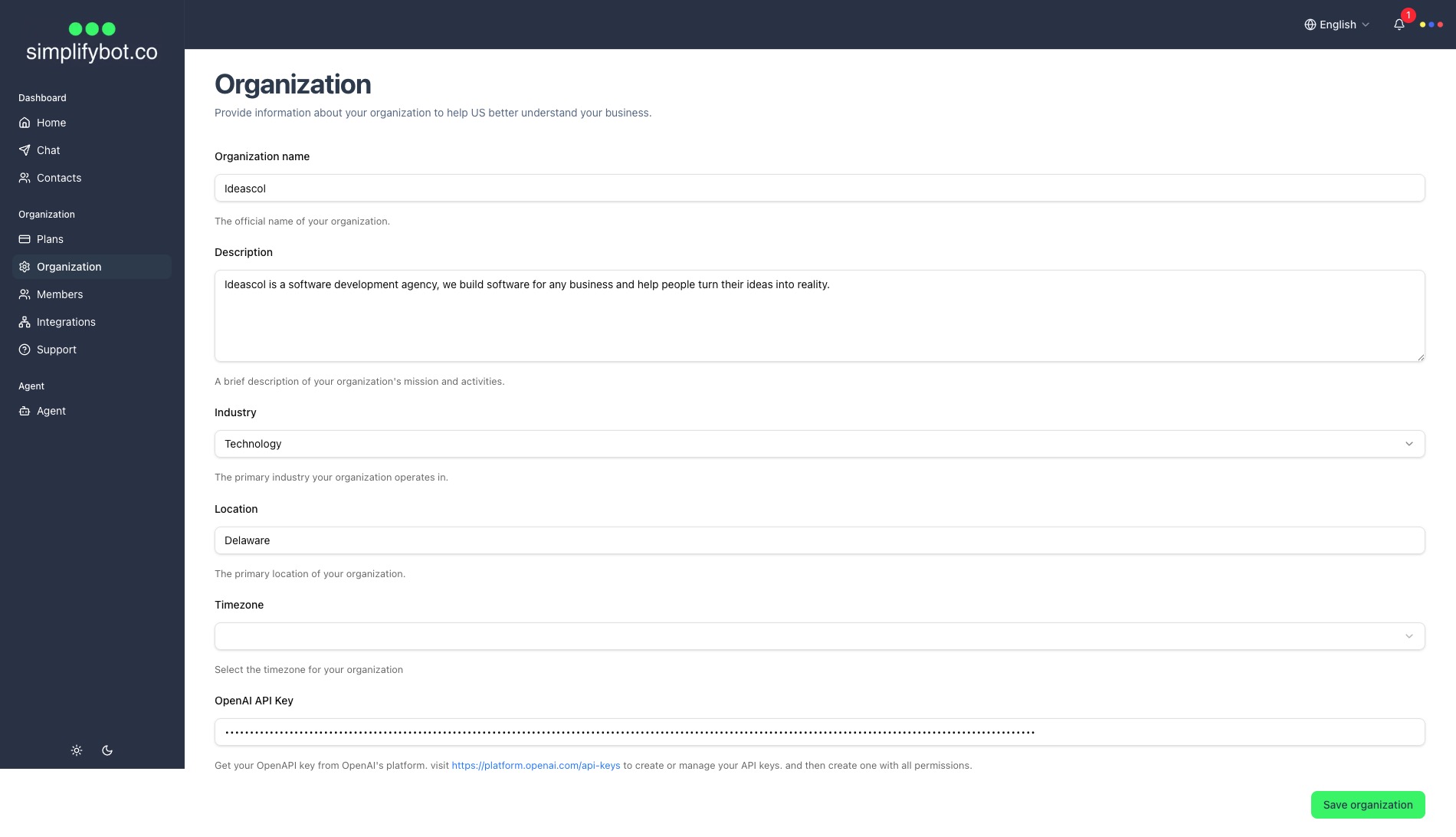
Filling Out Organization Information
Organization Name
- Enter your business or organization name
- This should match your official business name
- Example: "Acme Corporation" or "Sarah's Bakery"
Description
- Provide a detailed description of your business (minimum 10 characters, maximum 500)
- Include:
- What products or services you offer
- Your target audience
- Key differentiators
- Example: "We provide premium coffee and pastries to coffee enthusiasts in downtown. Known for our artisanal approach and locally sourced ingredients."
Industry
- Select the industry that best matches your business from the dropdown:
- Technology
- Healthcare
- Finance
- Education
- Retail
- Manufacturing
- Hospitality
- Media
- Nonprofit
- Other
Location
- Enter your business location (city, state, or country)
- This helps the AI understand regional context
- Example: "New York, NY" or "London, UK"
Timezone
- Select your business timezone from the dropdown
- This ensures accurate time-based responses and scheduling
- Choose the timezone where your business primarily operates
- Example: "UTC-5 (Eastern Standard Time)" for New York
OpenAI API Key
- Important: This is required for the AI agent to function
- Paste your OpenAI API key here (from Prerequisites Guide)
- The field is masked for security
- Ensure there are no extra spaces before or after the key
Saving Your Organization
- Review all fields to ensure accuracy
- Click "Save Organization" button at the bottom of the form
- Wait for the confirmation message
- Your organization information is now saved and will be used by your AI agent
Tips for Meaningful Organization Information
- Be Specific: Detailed descriptions help the AI better understand your business
- Keep It Updated: Update your organization information when your business changes
- Use Clear Language: Write in a way that clearly describes what you do
- Include Keywords: Mention important products, services, or features
Updating Organization Information
You can update your organization information at any time:
- Navigate to Organization in the sidebar
- Modify any fields as needed
- Click "Save Organization" to apply changes
Next Steps
Once you've completed your organization setup, continue to:
- Step 2: Create Your AI Agent - Configure your chatbot's personality and behavior