Step 3: Connect Integrations
This step connects your Simplifybot to social networks through their respective platforms, enabling your AI agent to send and receive messages.
Accessing Integrations
- Navigate to Integrations in the sidebar menu
- You'll see a list of available integrations
- Find the integration you want to connect (e.g., WhatsApp, Facebook Messenger, etc.)
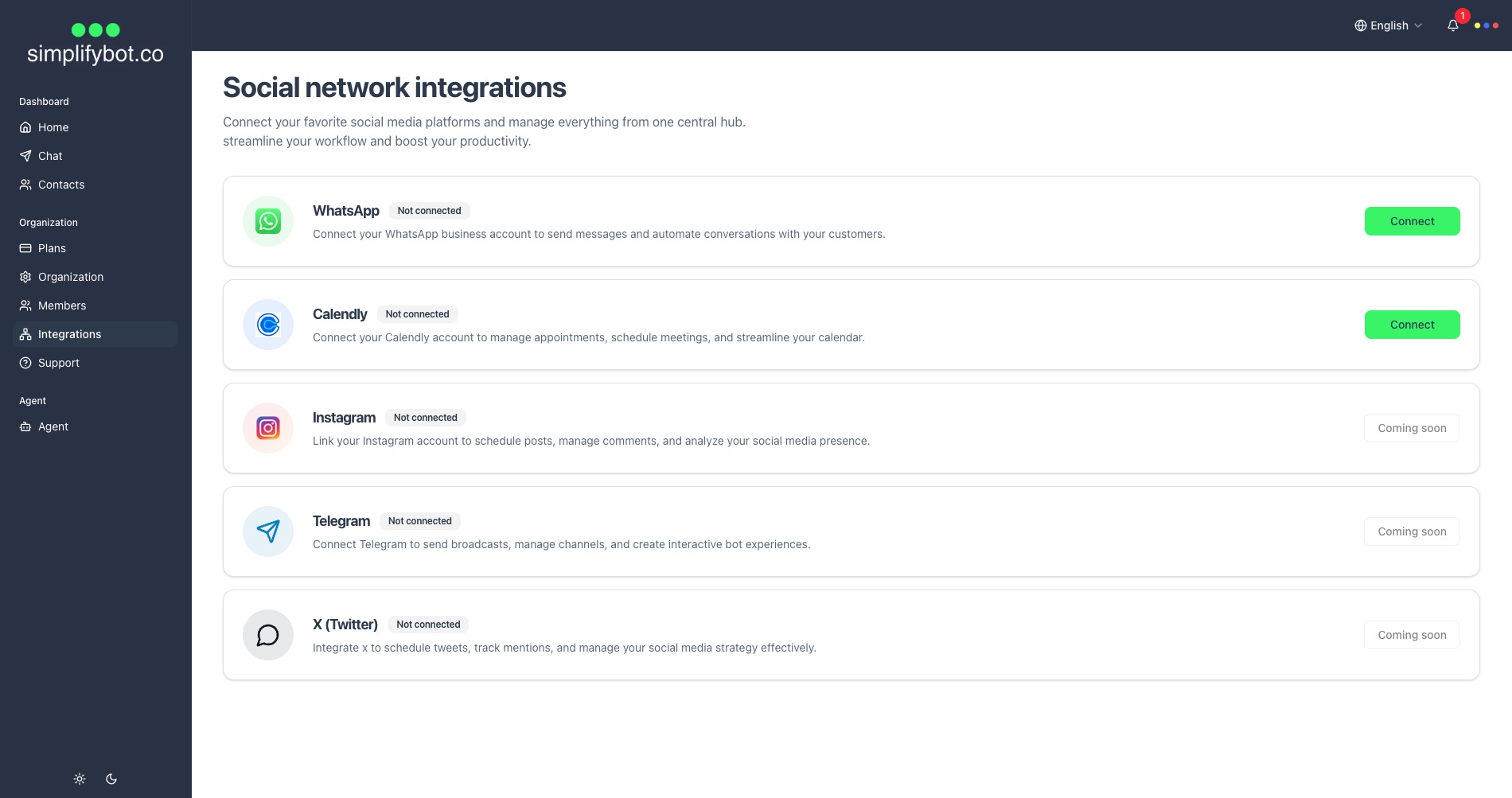
Connecting WhatsApp
Step 1: Initiate Connection
- Click the "Connect" button next to WhatsApp
- You'll be redirected to the Facebook login page
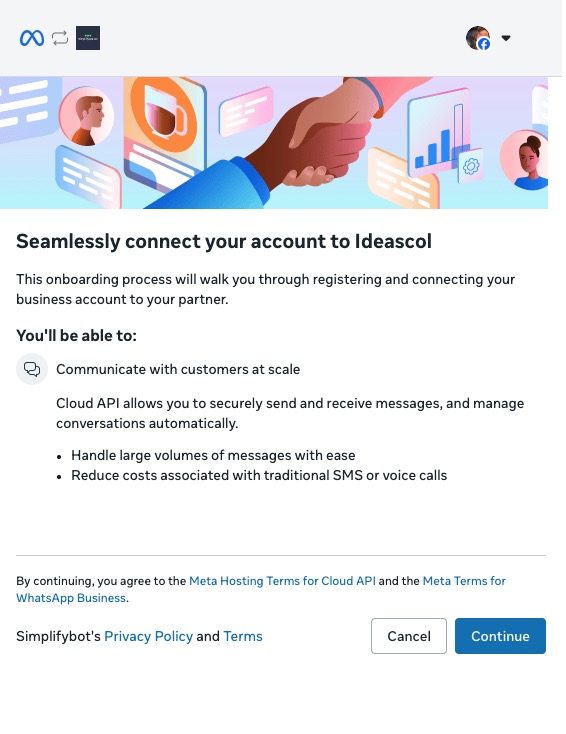
Step 2: Facebook Business Login
-
Log in with Facebook Business Account
- Use the Facebook account associated with your Business account
- Ensure you're logged into the correct account
- Grant the requested permissions when prompted
-
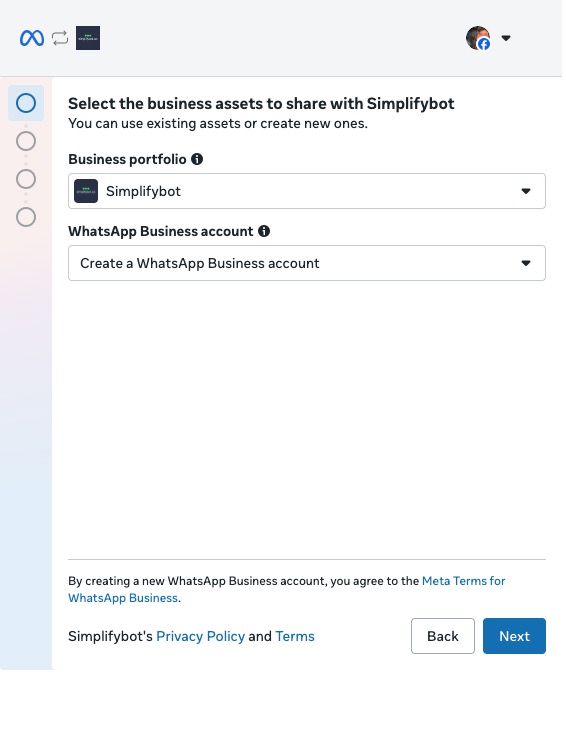
Select Your Business Account
- If you have multiple business accounts, select the one you want to use
- This should be the account with your verified WhatsApp Business Account
-
Select WhatsApp Business Account
- Choose the WhatsApp Business Account (WABA) you want to connect
- If you only have one, it will be selected automatically
-
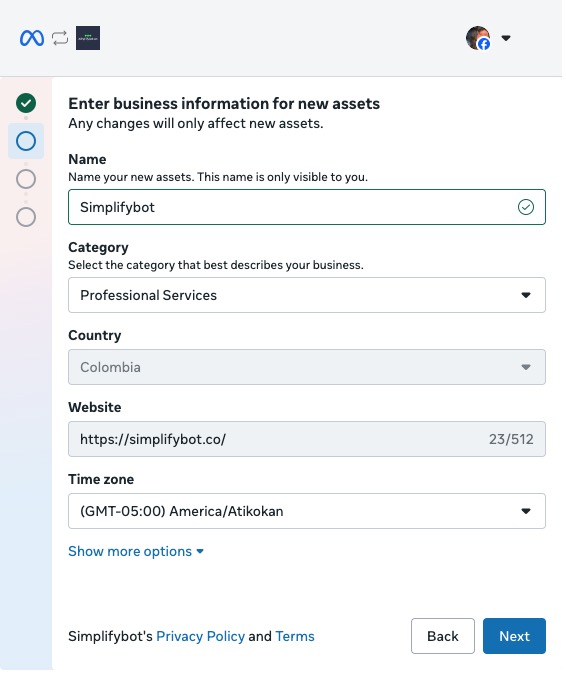
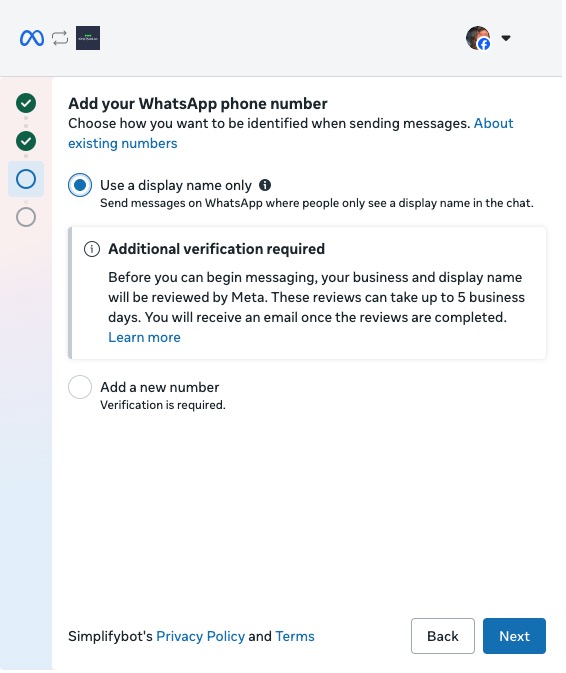
Select Phone Number
- Choose the phone number you want to use for WhatsApp messaging
- This should be the verified phone number from your WABA
- Important: This number will be used to send and receive messages
-
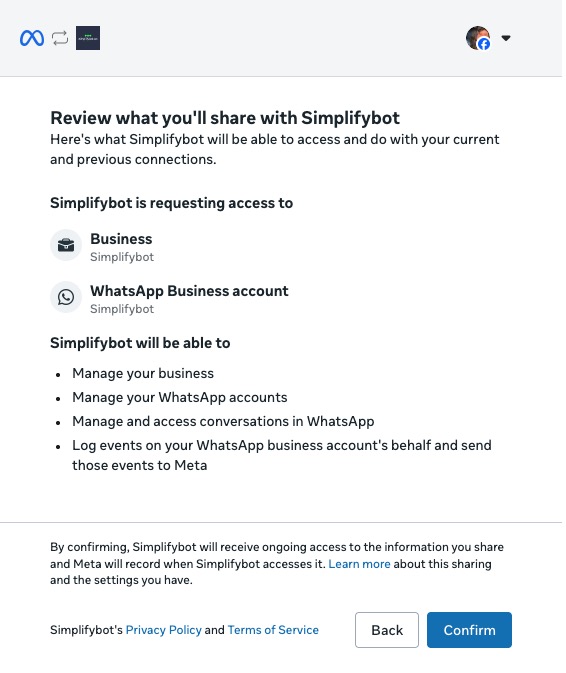
Complete the Connection
- Review your selections
- Confirm the connection
- You'll be redirected back to the Integrations page
Verifying the Connection
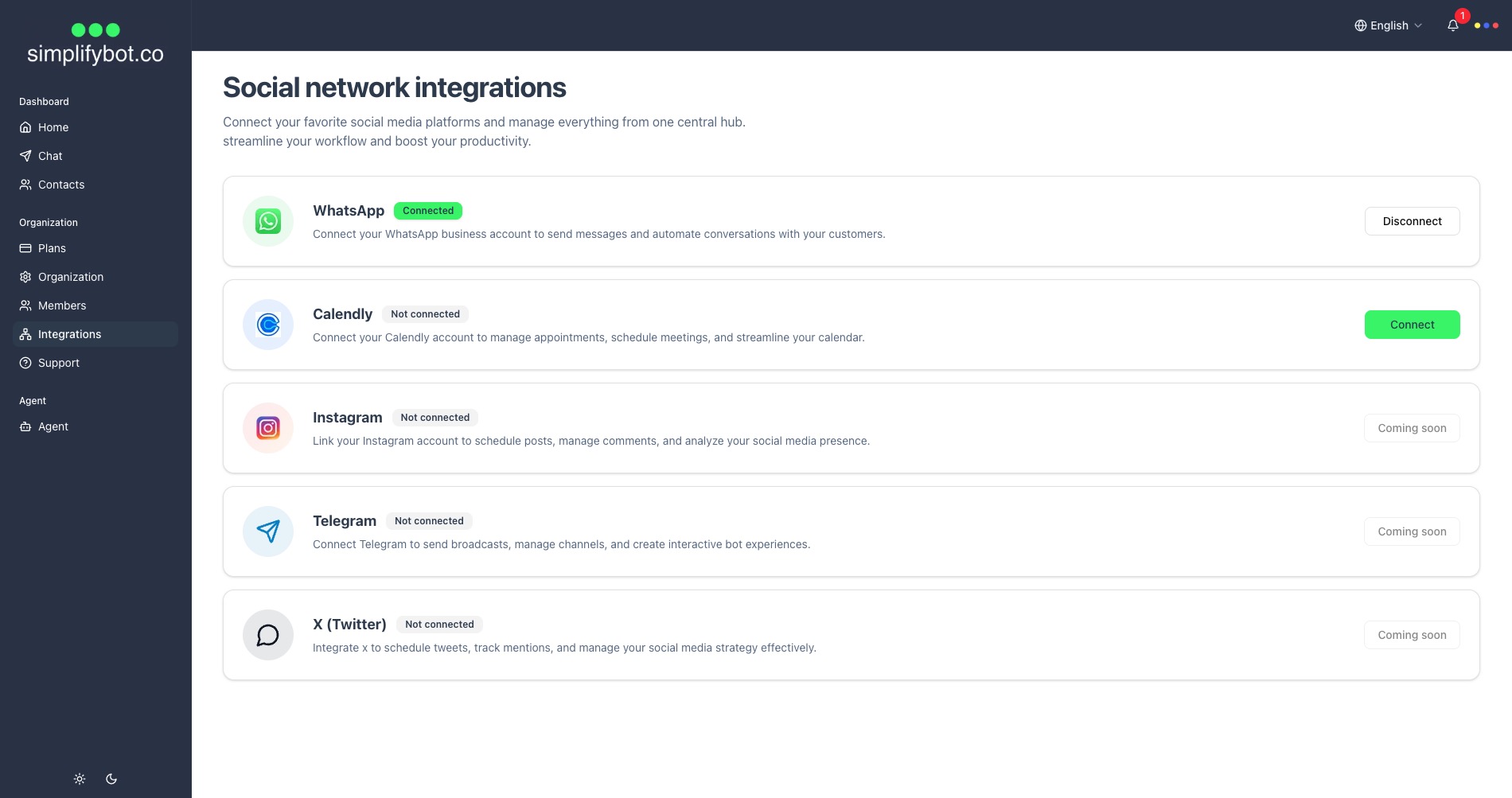
After connecting, you should see:
- ✅ WhatsApp status shows as "Connected"
- The status badge changes from "Not Connected" to "Connected"
- Your phone number is displayed (if applicable)
Getting Your Phone Number
Once connected:
- Your WhatsApp phone number is automatically linked to your Simplifybot account
- You can view your connected number in the Integrations page
- This number will be used for all WhatsApp conversations
Troubleshooting Connection Issues
Issue: Cannot see WhatsApp option
- Solution: Ensure you've completed Facebook Business setup (see Prerequisites)
Issue: Login fails or permissions denied
- Solution:
- Ensure you're using a Facebook Business account (not personal)
- Check that your business account is verified
- Verify you have the required permissions
Issue: No WhatsApp Business Account found
- Solution:
- Ensure you've set up a WhatsApp Business Account in Facebook Business Manager
- Verify your phone number is added and verified in your WABA
Issue: Connection successful but messages not working
- Solution:
- Check that your phone number is verified in Facebook Business Manager
- Ensure webhooks are properly configured (this is usually automatic)
- Contact support if issues persist
Disconnecting Integrations
If you need to disconnect an integration:
- Go to Integrations page
- Find the integration you want to disconnect
- Click "Disconnect" button
- Confirm the disconnection
- You'll need to reconnect to use that integration's features again
Next Steps
Once you've connected your integrations, continue to:
- Next Steps - Learn what to do after completing setup